
To add a policy, please go to Training => Policies on the left sidebar Admin Console menu.
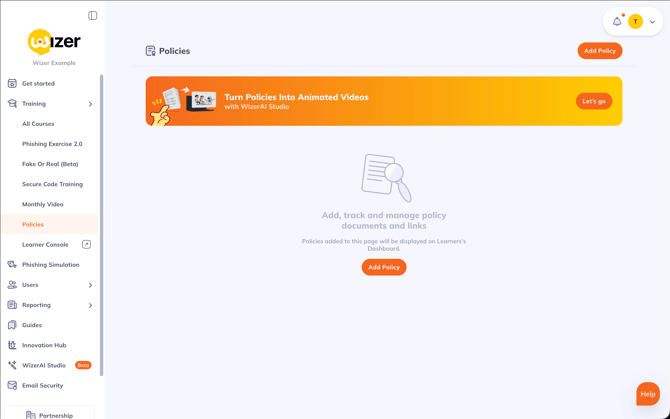
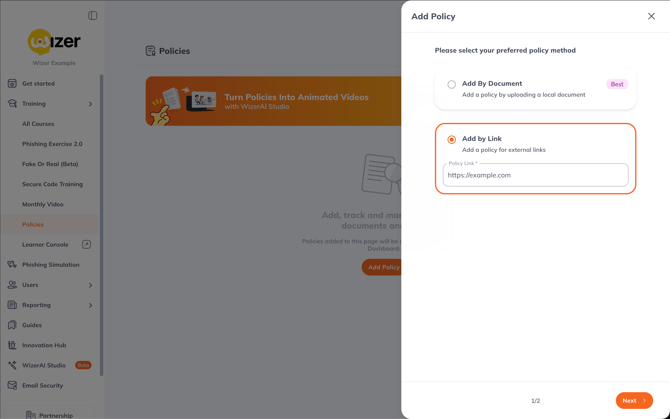
To create a PDF policy, choose the option Add by Document, upload the doucment, then click Next
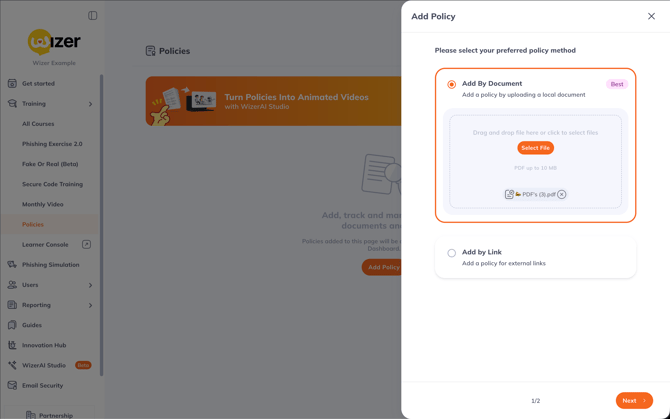
Then you will be taken to choose the settings. Adjust them to your liking, then click Submit to send out your policy!
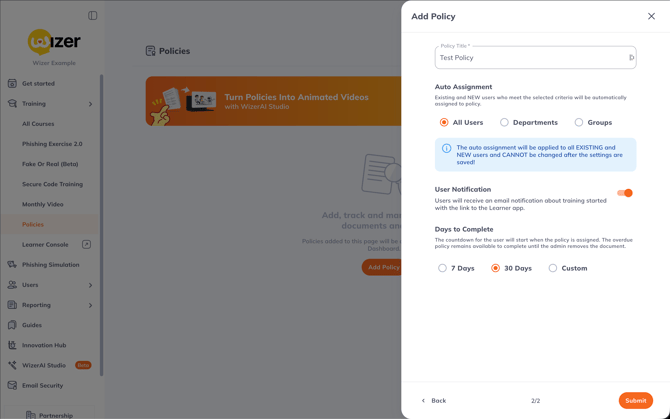
To add link policy, select the Add by Link option, and enter the link to your policy, then click Next.
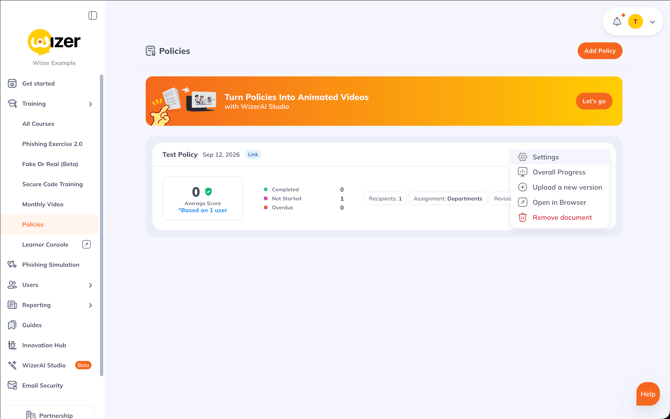
By clicking on the three-dot symbol in each policy, it is possible to rename/revise a policy, upload a new version, or remove it by clicking on the three-dot menu button.
A user clicks the task name, opens the document/link, reads it in the new window, and then clicks 'Acknowledge' in the Learner App. Please check this article on How to Acknowledge a Policy (for Learners).
Reminders for Policies
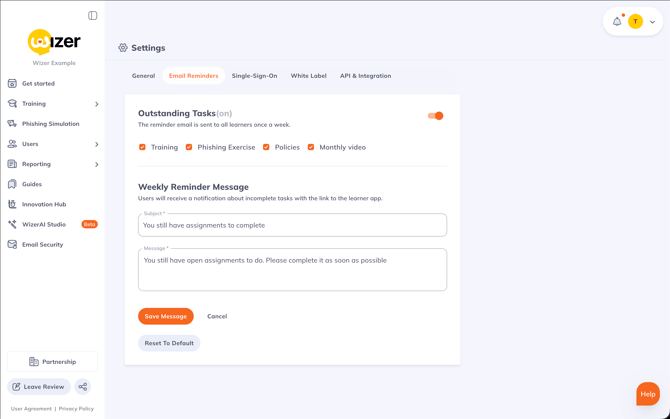
Aside from the assignment notification that is configured when creating your policy, Wizer also has automatic weekly reminders that will be sent to the users every Wednesday after midday EST in case they are enabled. You can check it here the Reminders Settings (main menu => Account Settings => Email Reminders).
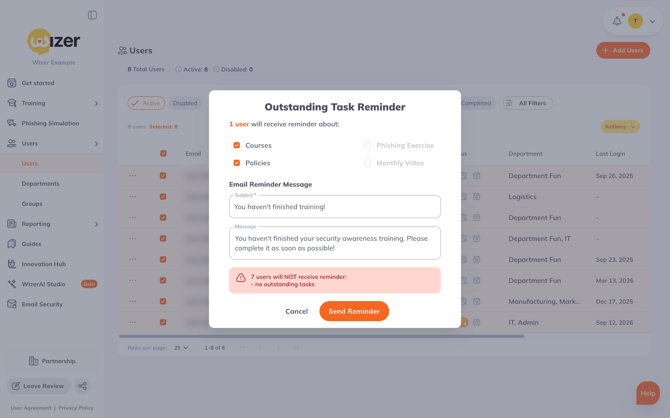
Manual reminders can be sent from the 'Users' page by selecting all users (box next to the Email column), Clicking Actions -> Send Reminder, then clicking Send Reminder.
More articles about reminders
How To Edit a Policy
When a policy is already set up, you can edit the following settings: name, departments (only to add), and number of days to complete.
Please go to 'Policies' and click the three-dot menu. Select 'Settings', edit, and click 'Submit'.
A new revision of a policy can be uploaded with some editions from the three dots menu => Upload a new revision. Users will get a notification about the task to acknowledge it. In the progress, the statistics will be shown as Revision #1, #2, etc.
To delete a policy permanently, click three dots and select 'Remove Document', then confirm the action. The policy will be removed without the possibility of recovering with all the progress.
Users' Progress on Policies
1. Choose the 'Overall Progress' option from the three dots menu of the policy and download a CSV file with data. All the columns (email, first name, last name, status, and acknowledge date can be sorted). Statuses for the tasks are Not Started, In Progress, and Completed.
2. Go to Reporting left side tab => Reports, and choose Policies Progress.
Filter the data by policies, status, departments, and groups, and view the policies' progress diagram below the filters bar. Click the three-dot menu at the left of each policy revision and get detailed information. Click the 'Export CSV' button on the right top of the page and download a full report.
More information can be found in the article Reports Section Reading and Explanation. General Report.
Any questions? Contact our support specialists at support@wizer-training.com