
The Phished Users feature is an automated system designed to streamline remediation for your phishing simulation campaigns. It automatically tracks users who fail a simulation and groups them together, making it easy to assign follow-up training or generate targeted reports for high-risk employees.
Accessing the Automation Settings
To configure how the system handles users who fail simulations:
-
Navigate to the left sidebar menu and select Phishing Simulation.
-
Click on Phishing Simulation Settings.
-
Select the Phished Users (Automation) section.
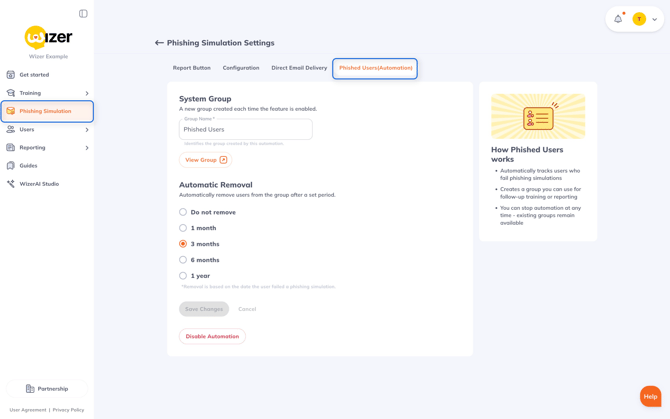
Configuring the Phished Users Group
Within the Phished Users settings panel, administrators can customize the following automation rules:
-
Group Name: You can define exactly how this automated group will be identified in your main Groups list. (e.g., "Phished Users" or "Simulation Fails 2026").
-
Automatic Removal: To ensure users aren't kept in a remediation group permanently after improving their security habits, you can set a timeframe for automatic removal. The timer begins on the exact date the user failed the phishing simulation.
-
Options include: Do not remove, 1 month, 3 months, 6 months, or 1 year.
-
How the Automation Works
Once configured and enabled, the system operates under the following rules:
-
Automatic Tracking: Any user who fails an active phishing simulation is instantly added to the designated automated group.
-
Remediation & Reporting: You can navigate to your standard Users => Groups menu to interact with this group. You can use it to assign follow-up training courses, monthly videos, or to export reports on your most vulnerable users.
Need further assistance? Please contact our Support team directly at support@wizer-training.com.